

A Tool to Replace POTAPlus
This is a follow-up to my previous article on the POTAPlus web browser extension. With the help of “ham-proxy-app.exe” and Omnirig, POTAPlus provided rig control to QSY to POTA spots and set the correct mode. With ham-proxy-app.exe, POTAPlus would also log your contact and add your spot to POTA. As you may recall, POTAPlus did not send the QSO details to ACLog correctly and I had to manually add the park reference and either correct or delete incorrect time off. Park specific information was not placed in the comments as it should be per the POTAPlus documentation. The developer had not provided any updates to POTAPlus for over 2-years. An email that I sent to him went unanswered.
During an email conversation with Nic, KC0UJC, after a POTA contact, he mentioned that there was a Disord server for POTA and there was an active CW group there. I joined the POTA server and started monitoring several of the groups. Long story short, I got into a conversation with a programmer, Cainan – N9FZ, who had done some work to fix POTAPlus. He worked with me for over a week or two, tweaking the code to make POTAPlus log correctly to ACLog. He also fixed an issue with CW operations to turn on transmitter incremental tuning (XIT, aka Delta TX or Clar TX). He told me that he was working on a standalone tool to take the place of POTAPlus.
Shortly after that, he sent me a link to his tool, hunterlog, on GitHub. This “app” is actually a selfcontained web page that runs on your desktop. When you execute the app, you will likely get warnings from your anti-virus software, so you will need to allow the app to run and access the internet. I have been using the app for over a month through three updates with absolutely no security issues. After downloading the zip file, extract it into your location of choice. When you execute the file hunterlog.exe, two windows will open. First is the Dev Tools window for editing the code and second is the user interface (UI). You can close Dev Tools and just use the UI, shown in the second screenshot below.
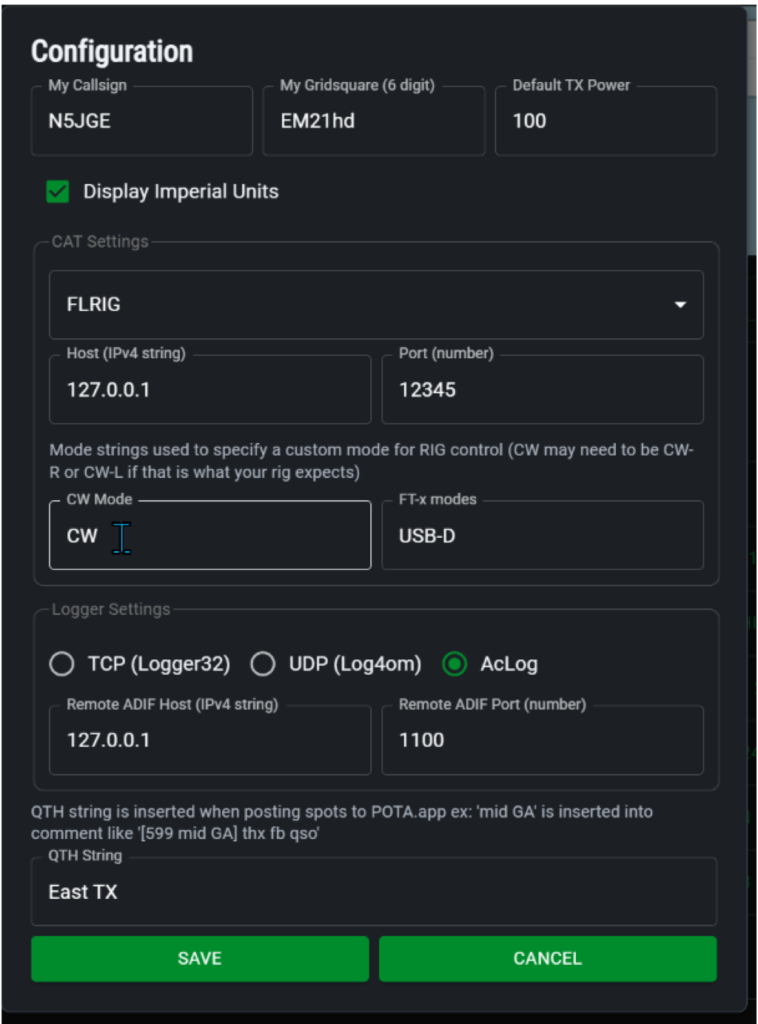
The first thing to do is to configure the app for your use. In the title bar area of the window, you will see the “Configuration” link in green text. Clicking that opens the first window below. As a minimum, you need to enter your callsign, grid square and check if you want to use imperial units. If you want to be able to click a spot and tune to that frequency, you will need to setup flrig (or rigctld not discussed here) to control your radio. You should make sure that the flrig “client” settings match those in the configuration window (those shown are the flrig defaults). If your rig uses something other than “CW” as the mode, you can specify that below the flrig settings. For example, many Yaesu radios use “CW-L” and “CW-U” in place of the “CW” and “CW-R” used by many Icom radios. Next, if you want to log QSOs, you can select your logger and make sure that the local host address and port are correct (those shown are the ACLog defaults). Additionally, you can enter a short text string to post when you spot an activator.
To use the app, simply click on the green frequency button of any spot to tune to it and set the correct mode (or manually tune it if you have not setup flrig). The fields in the upper left will be filled in with the spot data (callsign, frequency, etc), activator and park details will appear in the upper center and the map will center on the park location. Once you complete the QSO, you can log it or log and spot. If you hear the station, but don’t make a QSO, you can spot only or clear the info and choose another spot to tune to. (You don’t have to clear the fields to select another spot, it will overwrite the old spot.) When you log a QSO in hunterlog, it is stored in a local adif file (hunter.adi). If you have not setup a separate logger, those adif records can be imported into your main logger.
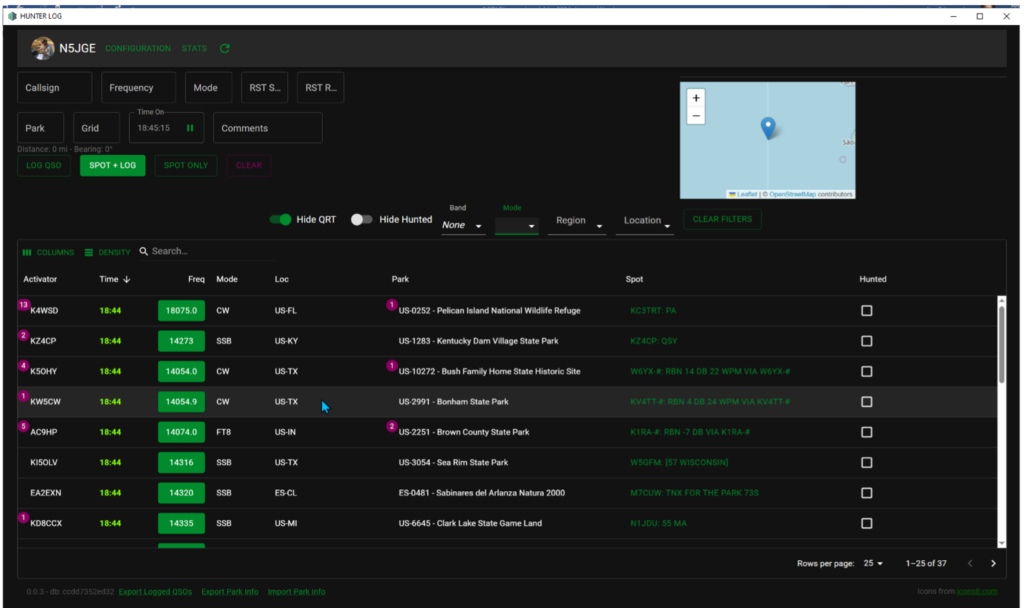
To fully use the app capabilities, you should import data from two files. The first is to download your hunter stats from “My Stats” page of pota.app. On the My Stats page, you will see a link “EXPORT CSV” to the right opposite the section titled “Hunted Parks”. Using the “Stats” link in the hunterlog title bar area, select Park Stats to import the hunter.csv file. Secondly, you can export an adif of all of your POTA contacts from your master log. Import this file using the link Stats – Op Stats. Those data are stored in a file named “spots.db” and allow hunterlog to track how many QSOs you have with each park and each activator. That information is shown in the magenta “badges” next to the callsign and park reference of each spot. This is a powerful tool to help you hunt new parks and boost your POTA stats. Be aware that those totals do not reflect mode or band. They only indicate that you have had a contact with that operator or park, so they are less helpful for awards like N1CC.
This has been a quick overview of using the app and you may have questions not answered here. Cainan has written some very good documentation, including a User Guide and specific instructions on Importing Your Stats. If you need further help getting hunterlog setup or when using it, let me know and I will try to help. If you use the app and find bugs or think of new features that would be useful, you can enter those at Issues on Cainan’s GitHub.
If you are an active POTA hunter, this is a gamechanger – give it a try.
Source PDF: 202405 – A Tool to Replace POTA-Plus
